Lovnib AI Sketch Art Studio
Create drawing-style artwork from photos and prompts with a focused AI toolset for pencil, ink, charcoal, outline, and text-led sketch workflows.
or drop a file,
By uploading an image you agree to our Terms of Service.
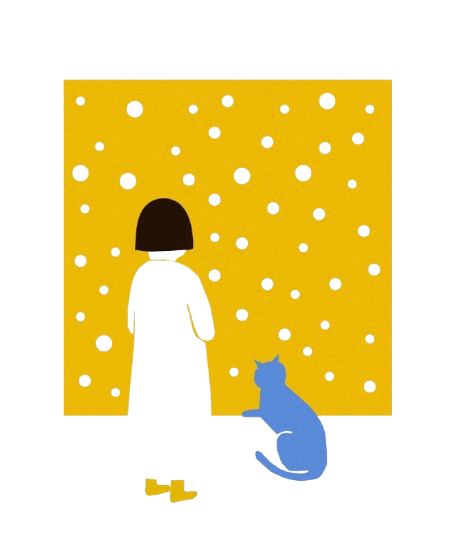
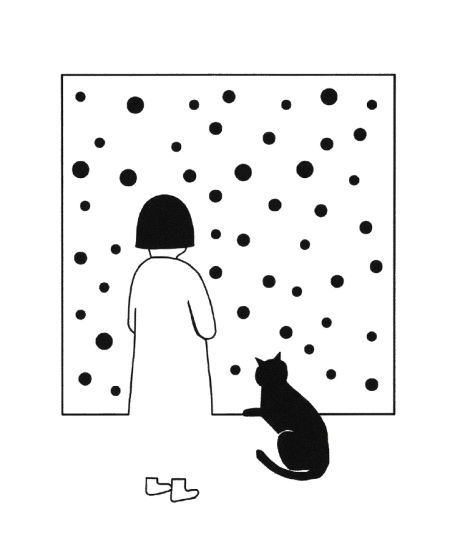
See How Lovnib Handles Portraits, Pets, and Products
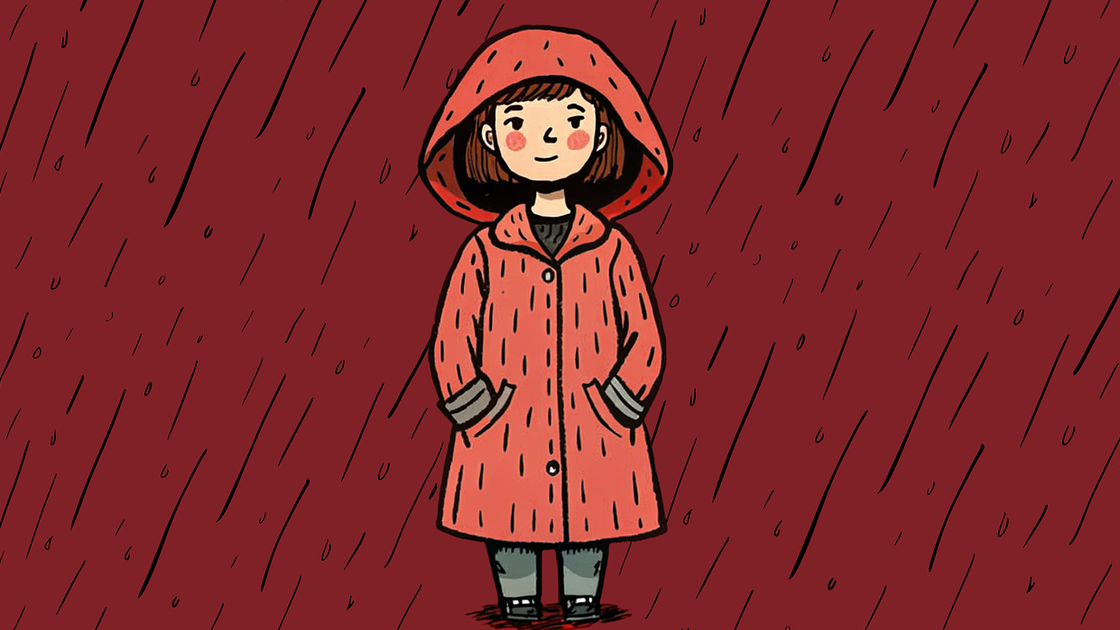
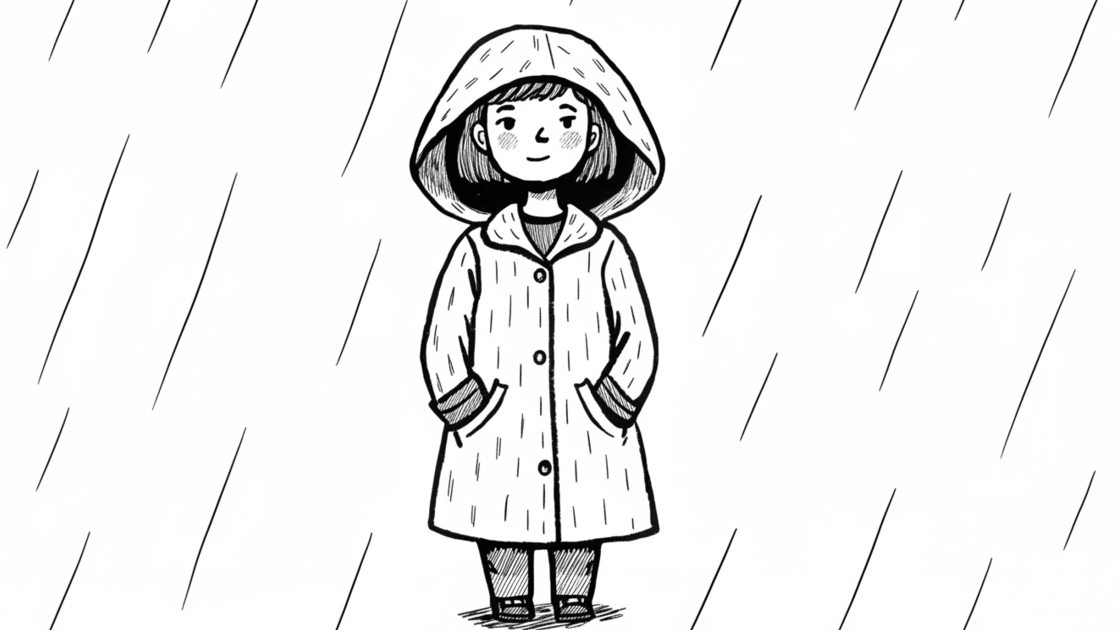
Choose a Lovnib Sketch Workflow
Start Your Next Lovnib Sketch
Upload a photo or choose an example to preview a drawing-style result.
or drop a file,
By uploading an image you agree to our Terms of Service.
What Lovnib Helps Creators Make
Lovnib is a focused AI sketch art studio for creators who want drawing-style artwork without learning a complex editing stack. The homepage introduces the Lovnib product family: photo-based sketch tools, prompt-based sketch creation, and style-specific workflows for pencil, ink, charcoal, cross hatching, and cartoon outlines. From here, you can compare creative directions and route each project to the workflow that fits it best.
The main value of Lovnib is choice with a clear creative path. Start from a portrait, pet, product, scene, or written prompt, then choose the style that fits your output: soft pencil shading for keepsakes, clean ink lines for printable outlines, heavier charcoal for dramatic contrast, or cross hatching when you want a more textured drawing. This keeps the Lovnib overview broad enough to explain the product while each focused page stays dedicated to one job.
If you are starting with a photo, open the general photo tool for the broad workflow. If you already know the result you want, choose a style page from the Lovnib tool list.
A clear home for Lovnib creative workflows
Lovnib brings the main sketch workflows together so you can compare options before opening a focused tool. You can review style directions, sample subjects, upload entry points, and links to specific workflows from one overview. That makes the product easier to navigate whether you are making a personal keepsake, a printable outline, a product concept, or a prompt-based drawing.
How to choose the right Lovnib workflow
Use the broad photo workflow when you want to compare several styles from the same upload. Choose a focused style page when the output is already clear: pencil for softer portraits, ink line for clean outlines, charcoal for contrast, cross hatching for texture, or cartoon outline for simple printable shapes. For prompt-based creation, start with the text-led sketch workflow. Clear inputs with visible subjects, good lighting, and enough detail usually give Lovnib more useful structure to work from.
Privacy and security at Lovnib
Lovnib's Privacy Policy says uploaded images and generated content are stored to provide the service, and that they are not used to train AI models. The Terms say users retain ownership of uploaded images and that generated sketch images can be used for commercial and non-commercial purposes. Trial and paid workflows may have different privacy behavior, so users working with sensitive photos should review the Privacy Policy and plan settings before generating.
Ready to try it? Start creating with Lovnib and choose the sketch workflow that fits your project.
Creator Testimonials
What creators say about Lovnib
Gemma Wells
IllustratorThe line art comes out ready to use—no manual edge cleanup needed.
Felix Drake
Brand DesignerSuper convenient for client presentations. Switching between styles is quick too.
Victor Chen
ArchitectThe hand-drawn feel for concept visuals is natural—way better than filters.
Iris Santos
Game ArtistRunning character sketches in batches is stable. The style stays consistent.
Tessa Morgan
Social Media ManagerAdding sketch effects to post visuals actually boosted engagement.
Rowan Pierce
Freelance DesignerUseful for all kinds of projects. Saves a lot on outsourcing costs.
Frequently Asked Questions
Practical answers about using Lovnib.
What is Lovnib?
Lovnib is an AI sketch art studio for creating drawing-style artwork from photos and prompts. It brings photo-based tools, text-led creation, and focused sketch styles into one place for creators who want pencil, ink, charcoal, outline, and cross-hatching results.
Which Lovnib tool should I start with?
Start with the general photo tool if you want to upload one picture and compare different drawing styles. Use the pencil, ink line, charcoal, cartoon outline, cross-hatching, or text-led tools when you already know the style or input you want.
What styles can I create in Lovnib?
Lovnib supports pencil sketch, ink line art, charcoal, cross hatching, and cartoon outline workflows. Use the overview on this page to compare directions, then open a focused tool page when you want details for one style or creation path.
How does Lovnib handle uploaded images?
Lovnib stores uploaded and generated images to provide the service. The Privacy Policy states that uploaded images and generated content are not used to train AI models, and that users may request deletion of account-associated data.
Do I need credits to generate?
Yes. Each generation uses credits. New accounts receive monthly trial credits plus sign-up credits, and paid options are available when you need more generation capacity, private outputs, or HD downloads.